How to
Uninstall a game
Remove one game in the Games App, or several at once through Windows.
Option 1: Uninstall a game using the WildTangent Games App
The quickest and easiest way to uninstall a game is through the WildTangent Games App.
- Launch the WildTangent Games App.
-
Click LIBRARY on the toolbar.
- In the Library, find the game you want to uninstall. If you don't want to scroll through all of your games, you can search for it:
-
Click the Dial icon on the left of your screen.
-
You'll see the Search Library option in the search bar at the top.
-
Type the game's title into the search bar. Matching results will appear as you type.
-
-
Hover your mouse over the game tile, then click the trash can icon in the corner.
-
A confirmation box will appear. Click UNINSTALL to finish.
Good to know: Uninstalling a game you've bought only removes it from your computer. It stays in your Owned Games list, so you can download it again at any time.
Option 2: Uninstall multiple games using Windows
You can also uninstall WildTangent games manually, using your computer's uninstall feature.
- Open the Windows Search function.
- Type uninstall a program into the search field.
- Select Uninstall a program from the search results.
- You'll see a list of all the programs installed on your computer. Look for WildTangent Games. It may also be listed as WildGames, HPGames, DellGames or something similar.
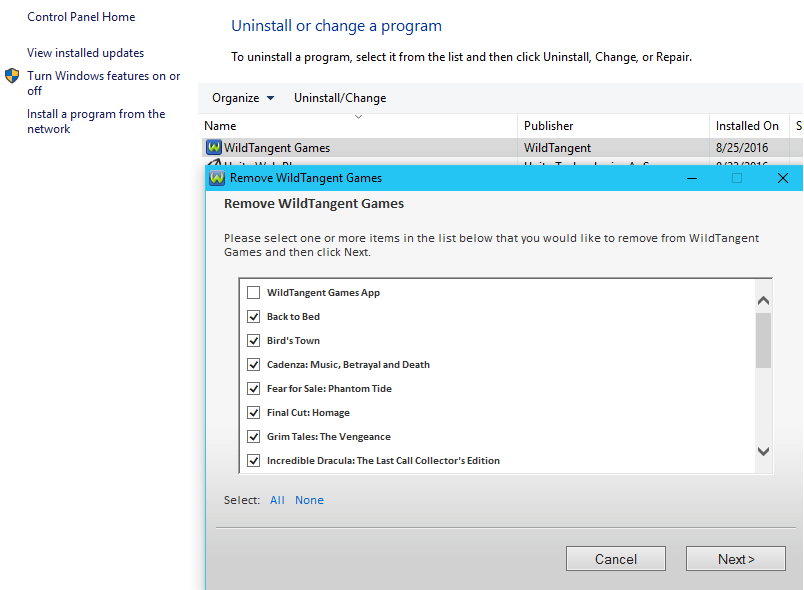
- Click Uninstall/Change at the top of the window. Depending on your version of Windows, this may say Change/Remove.
-
You'll see a list of the games installed on your computer. Tick the game or games you want to uninstall.
Important: Don't tick WildTangent Games App at the very top of the list. This removes the Games App itself, and any remaining games will stop working.
Also avoid clicking ALL at the bottom of the window. This uninstalls every WildTangent game on your computer, including games you may want to keep.
- Follow the prompts to complete the uninstall.
Having trouble uninstalling a game?
Our Customer Support team is happy to help.
Comments